This guide follows a real confirmation cycle through the screens you'll actually use — creating a request, what readers see on the page, automatic reminders, and exporting the record you'll be asked for.
Three steps from the Marketplace listing to your first tracked page.
Open the Read & Confirm listing on the Atlassian Marketplace and add it to your Confluence Cloud site. Billing and updates run through your existing Atlassian account, so there is no separate vendor login to manage.
On first launch, Atlassian lists the access the app requests; a site admin reviews and approves it. After that, open Confluence's Apps menu and choose Read & Confirm. The workspace sidebar has three views: Dashboard, My Confirmations, and Teams.
Create a request straight from the dashboard — Read & Confirm embeds its panel on the chosen page for you. Or start from the page: type /Read in the editor to insert the macro, publish, and click "Create on dashboard" in its empty state. Either way you land in the same creation dialog.
One full cycle, from a new request to the exported record.
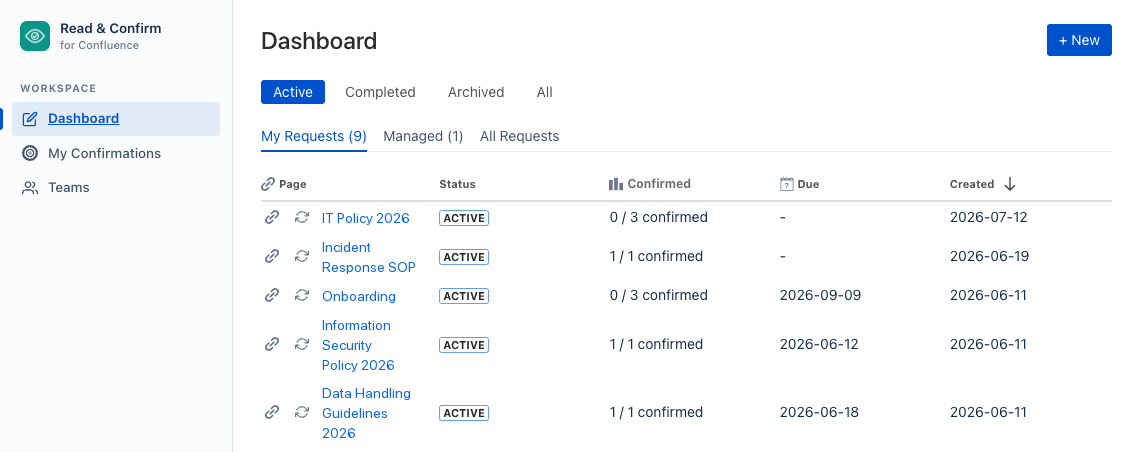
Open the dashboard and click + New. The list behind it keeps every request in view — filter by Active, Completed, Archived, or All, and switch between the My Requests, Managed, and All Requests tabs as your collection grows.

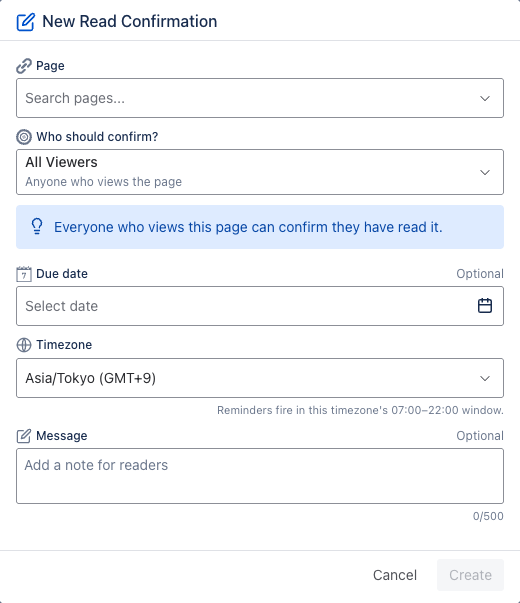
In New Read Confirmation, search for the page, then decide who should confirm: specific people, a saved Team, or All Viewers — anyone who opens the page. Add an optional due date with its timezone, and an optional note for readers of up to 500 characters. Create embeds the panel on the page and notifies named readers with an @mention comment.

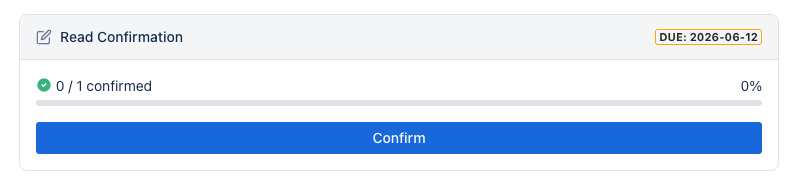
On the page itself, the Read Confirmation panel shows the due date, live progress, and a single Confirm button. One click writes a timestamped record tied to the page version the reader saw — the panel then reads "Confirmed on …" with that version. If the page changes afterwards, the confirmation is flagged as outdated and a Re-confirm button appears.

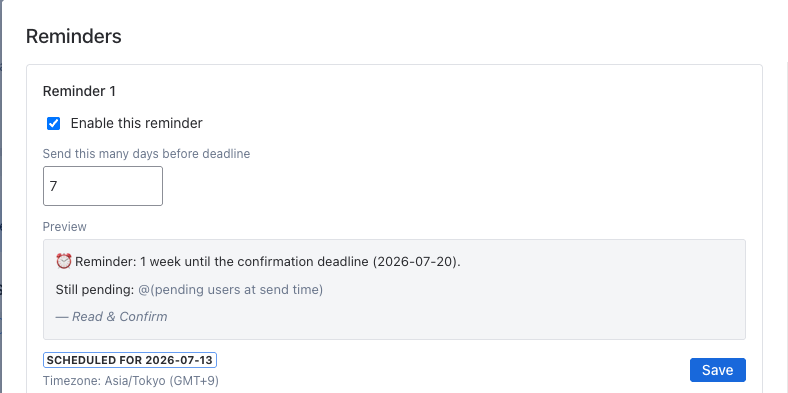
Two reminder slots come pre-armed at 7 days and 1 day before the due date — adjust or disable them per request. Each fires as a page comment that @mentions only the people still pending, inside the 07:00–22:00 window of the request's timezone. The preview shows the exact message before it goes out.

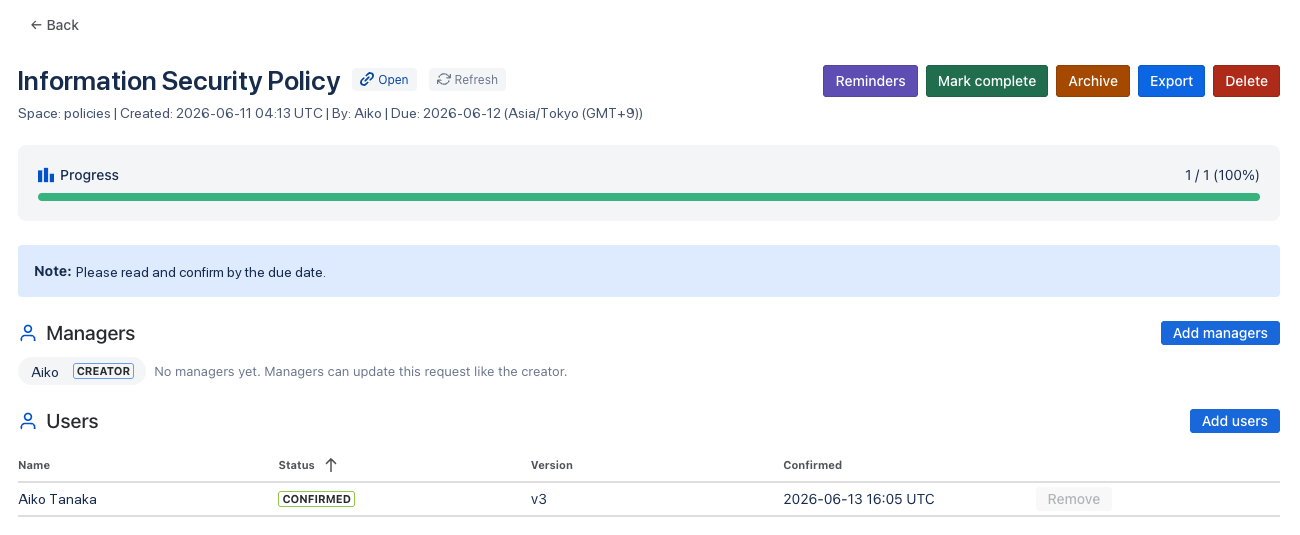
The request detail shows overall progress and, per person: pending or confirmed, against which page version, and when. Add managers to share admin, mark the request complete, or archive it — and when someone asks for proof, Export downloads the full record as CSV: Name, Status, Version, Confirmed At.

What each control on a request does.
Reserve Read & Confirm for pages where acknowledgement carries weight — policies, SOPs, regulated notices. Used on everything, the signal that a confirmation means something gets diluted.
Every confirmation records the page version it was made against. When the page is edited, Read & Confirm flags earlier confirmations as outdated and offers a choice — reset confirmations, accept the latest version for everyone, or keep things as they are — so the record always says which words each person accepted.
If the same department acknowledges every policy, save it once as a Team and pick it on each new request. When people join the team later, affected requests show "Team updates available" and add them in one click — no more reconciling member lists by hand.
Ask the person who builds it. Replies are fast and specific.