MiddleCore/Products/Read & Confirm/Upgrade guide
Read & Confirm icon
RC · Confluence Upgrade guide

Upgrading takes a few clicks.

Most Read & Confirm updates arrive automatically. Only a major version — typically one that changes the app's permissions — waits for a site admin's approval. This guide walks through that approval — and what happens on either side of it.

Before you start

What you need, how long it takes, and what it touches.

Required role
A Confluence site admin. Other users don't see Manage apps.
Time required
About two minutes. Nothing to download, no maintenance window to book.
Downtime
None. Pages and acknowledgement actions keep working while the update applies.
Your data
Acknowledgement records, audiences, deadlines, and settings all carry over to the new version unchanged.

Upgrade steps

Four steps, from finding the update to confirming it works.

  1. 01

    Open Manage apps

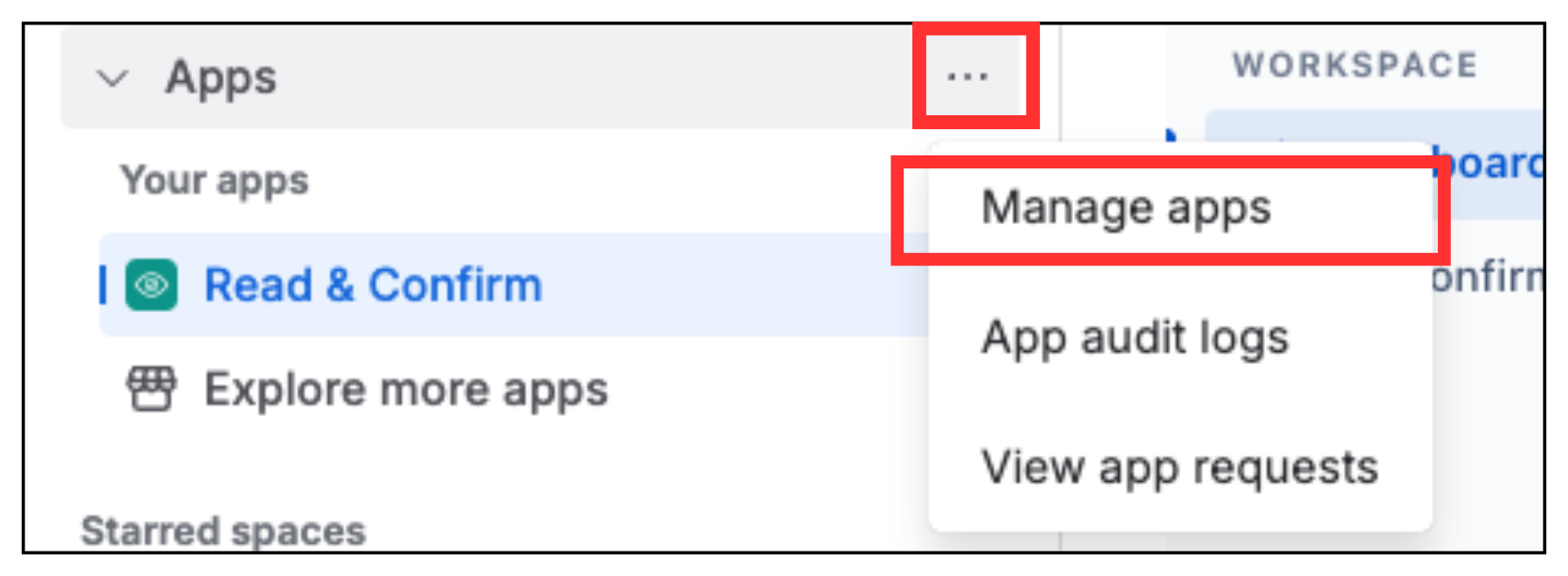
    Log in to Confluence as a site admin. In the left sidebar, click the "…" menu next to Apps, then choose Manage apps.

    Confluence sidebar with the
  2. 02

    Go to Connected apps

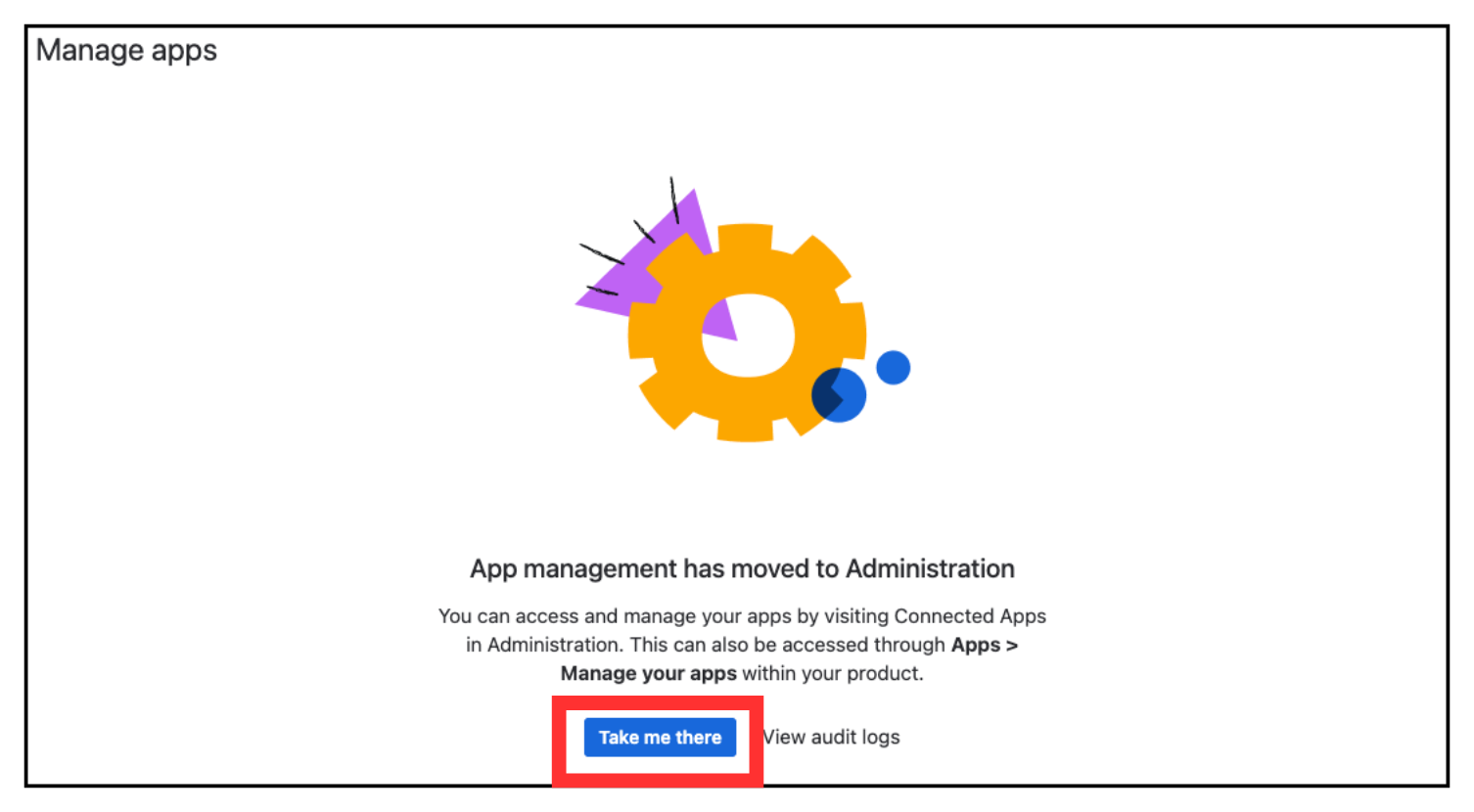
    App management has moved to Atlassian Administration — click "Take me there" to open the Connected apps page.

    Manage apps screen with the Take me there button highlighted
  3. 03

    Open the app details

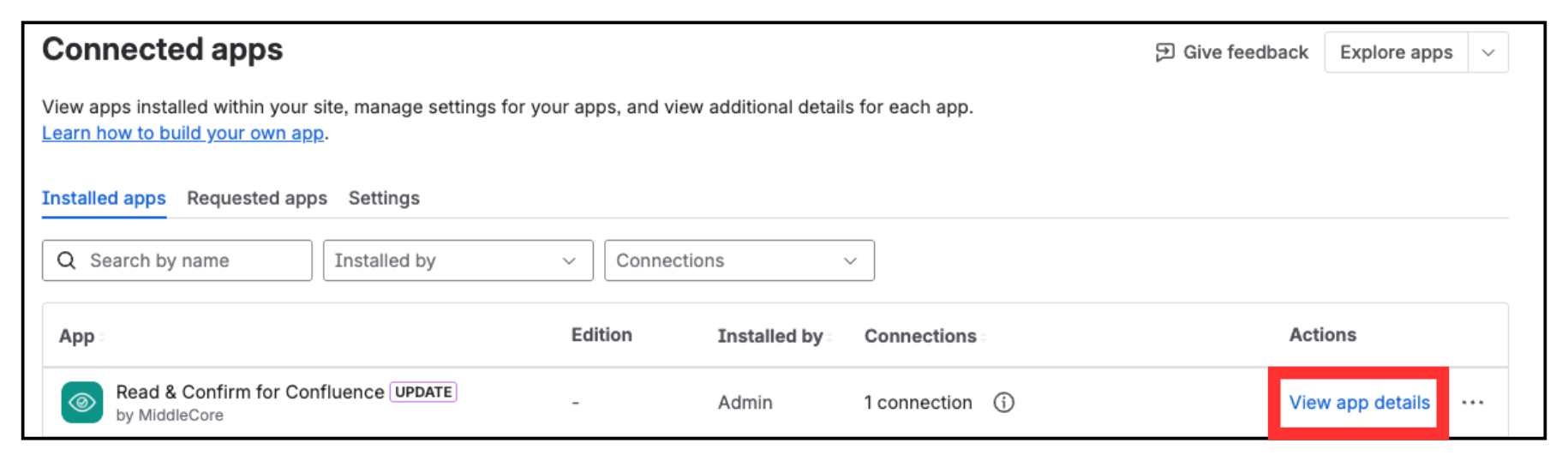
    On the Installed apps tab, find "Read & Confirm for Confluence". An UPDATE tag shows when a new version is waiting. Click "View app details".

    Connected apps list showing Read & Confirm for Confluence with an UPDATE tag and the View app details link highlighted
  4. 04

    Update and confirm

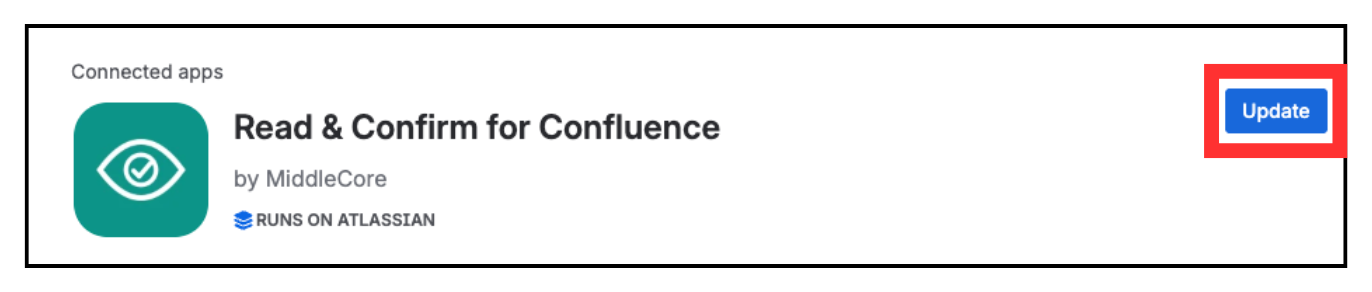
    Click Update. Atlassian lists exactly what access changes — review it and approve, and the new version takes effect the moment you do. Reopen a page with an acknowledgement on it — if the confirm button and tracking list behave as usual, you're done.

    App details for Read & Confirm for Confluence with the Update button highlighted

FAQ

Does upgrading erase acknowledgement records or settings?
No. Records and settings live in Forge storage inside your own Atlassian tenant and carry over across versions unchanged.
Why isn't every update automatic?
That's how Atlassian Forge works. Minor versions roll out automatically; a major version — typically one that changes the app's permissions — waits until a site admin reviews and approves it.
Does an upgrade cost anything?
No. Your subscription continues unchanged through your Atlassian account, and version updates are free.
Can I test an upgrade before approving it in production?
If you have a sandbox Confluence site, install the app there and approve the update first — then approve it on production once you've seen it behave.
What if something breaks after an update?
Write to contact@middle-core.com with your site name and what happened — the person who builds the app will look. Acknowledgement records stay in your tenant, so nothing is lost while it's investigated.
Questions before you install?

Ask the person who builds it. Replies are fast and specific.

contact@middle-core.com