MiddleCore/Products/Assign & Approve Sections/User guide
Assign & Approve Sections icon
AA · Confluence User guide

From "TBD" to every section done.

This guide follows one page through the whole cycle, on the screens you'll actually use — defining sections, writing with Start Working, the review loop, the dashboard that gathers everything waiting on you, and the AI that drafts sections and digests team status.

Setup

Three steps from the Marketplace listing to your first tracked page.

Step 1

Install from Marketplace

Open the Assign & Approve Sections listing on the Atlassian Marketplace and add it to your Confluence Cloud site. Billing and updates run through your existing Atlassian account, so there is no separate vendor login to manage.

Step 2

Add the macro to a page

Edit a structured page — a postmortem, PRD, or RFC — type /assign, and insert "Assign & Approve Sections". There is nothing to configure in the editor: publish, and the empty state invites you to add your first section.

Step 3

Know where things live

Sections and their statuses live on the page itself, in the macro. Your cross-page view lives in Confluence's Apps menu under Assign & Approve Sections — the My Sections list of everything waiting on you.

Step-by-step

One full cycle, from empty template to a page that is actually finished — and the AI features that speed it up.

  1. 01

    Define the sections

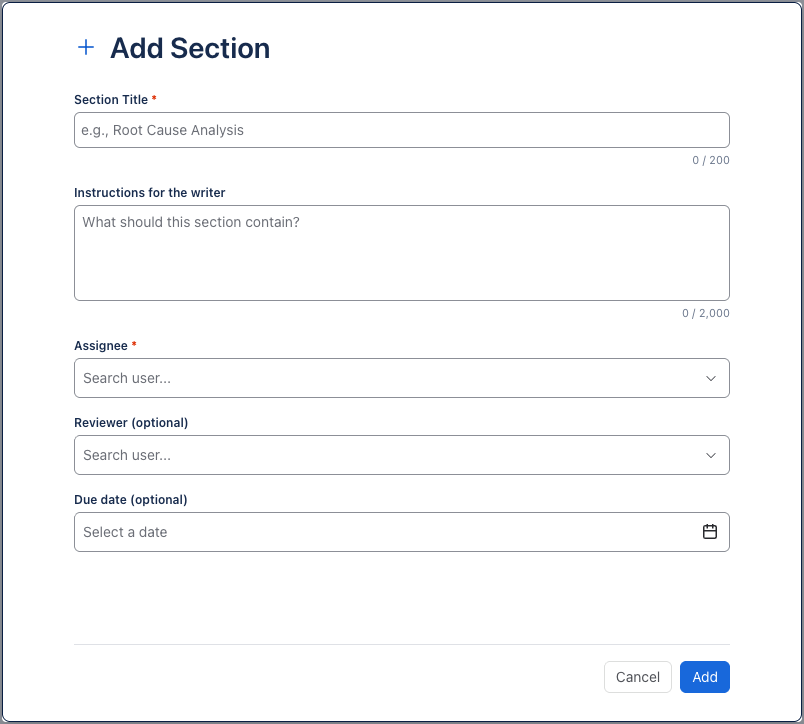
    Click Add First Section and describe the work: a title (up to 200 characters), instructions for the writer (up to 2,000), a required assignee, an optional reviewer — a different person — and an optional due date. Repeat for each section; a page holds up to 50.

    Add Section dialog with title, instructions, assignee, reviewer and due date fields
  2. 02

    The page shows its own progress

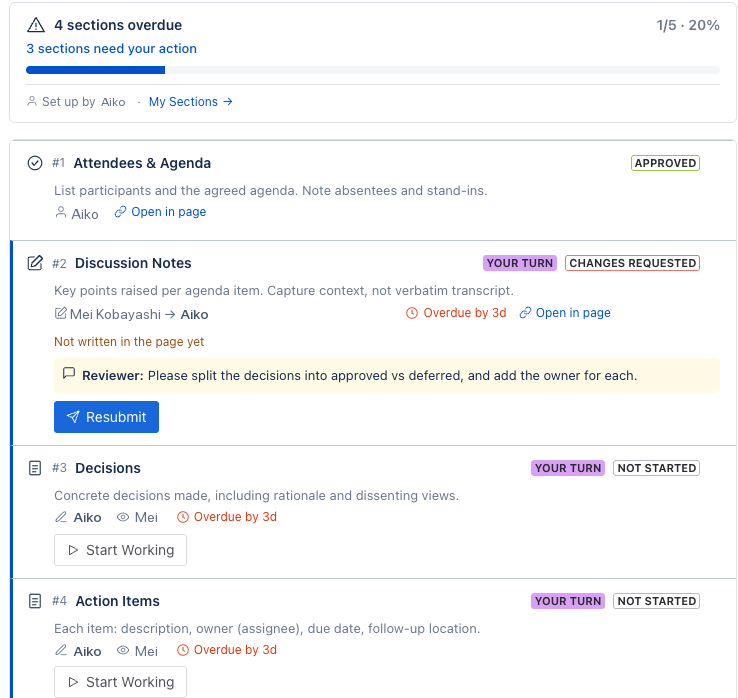
    The macro becomes the page's status board: a progress bar with the completion count, cards numbered #1, #2, … with status lozenges from Not Started to Approved, and a purple Your Turn marker wherever you are the one holding things up. Overdue sections turn the header red — visible to everyone who opens the page.

    Assign & Approve Sections board on a page with progress bar and section cards in several statuses
  3. 03

    Writers click Start Working

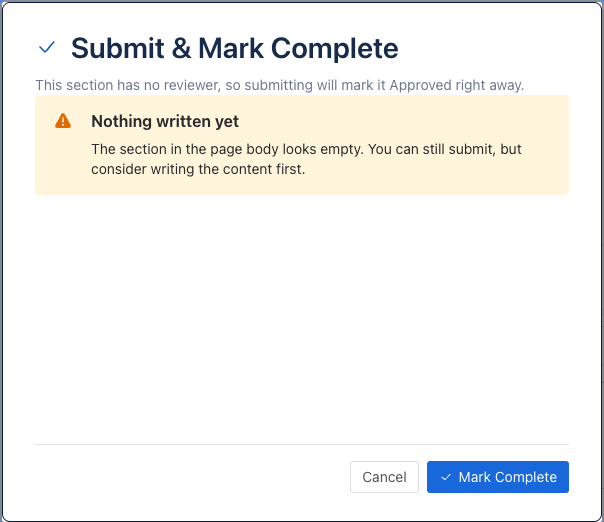
    Start Working inserts a heading and a "Write here…" placeholder into the page body and opens the editor in a new tab. When the section is written, Submit for Review sends it to the reviewer with an optional note. No reviewer set? The dialog becomes Submit & Mark Complete and approves right away — and if the section body still looks empty, the app warns you before you submit.

    Submit and Mark Complete dialog with the Nothing written yet warning
  4. 04

    Reviewers approve or send back

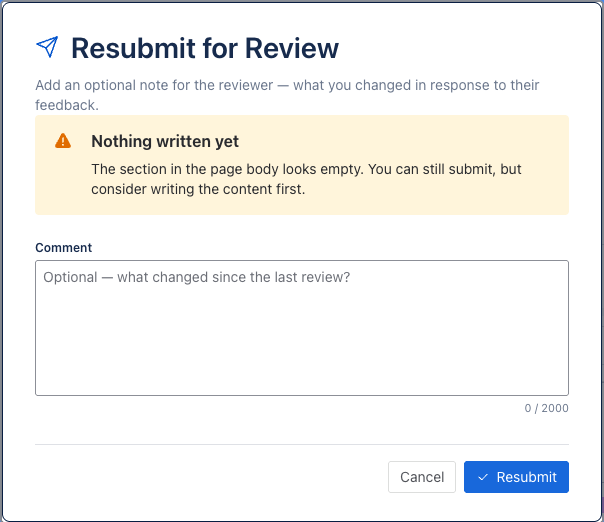
    The reviewer sees Approve and Request Changes on the card. Requesting changes requires a comment — it lands on the card as reviewer feedback, the status flips to Changes Requested, and the writer answers with Resubmit, optionally noting what changed. Approved sections lock: nobody edits them, so a finished page stays finished.

    Resubmit for Review dialog with a comment field for describing what changed
  5. 05

    One dashboard for all your pages

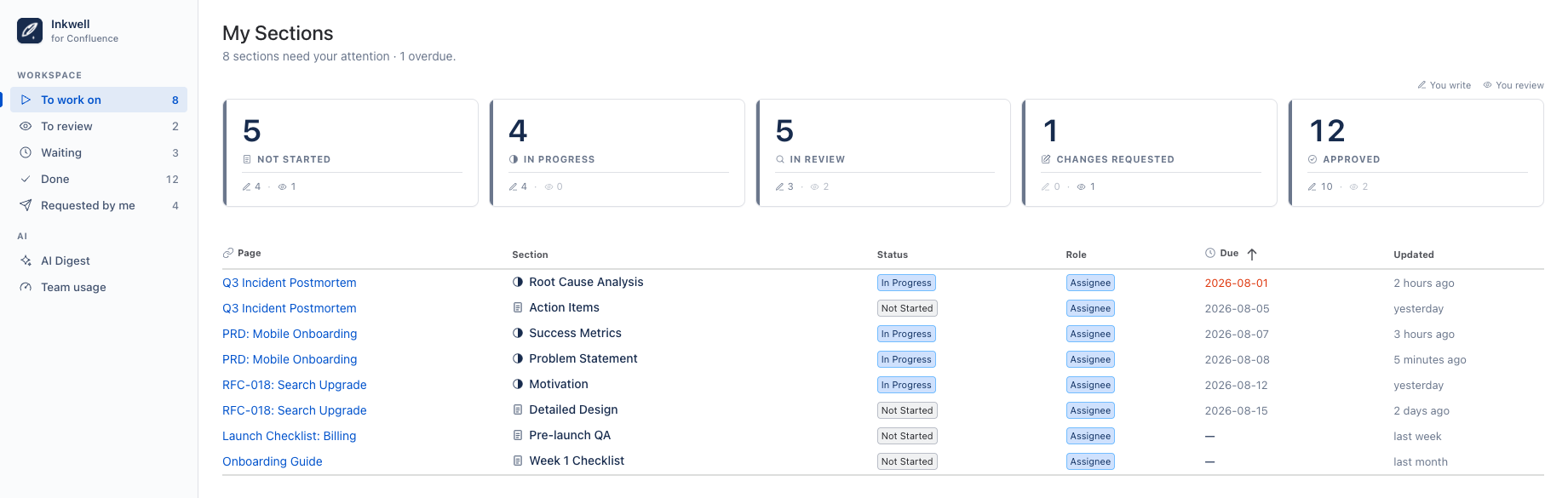
    My Sections gathers everything with your name on it across every page: To work on, To review, Waiting, Done, and Requested by me, with status tiles split by write and review roles and a table sorted by due date. For anything overdue — or due within 24 hours — the app also posts an @mention comment on the page itself, so the nudge reaches people where they already are. The AI group in the sidebar adds two more views: AI Digest, which summarizes everything in flight into risks, bottlenecks, and next actions, and Team usage, which shows the team's shared monthly AI allowance.

    My Sections dashboard with the AI group in the view sidebar, status tiles and a table of sections
  6. 06

    Stuck on a blank section? Draft with AI

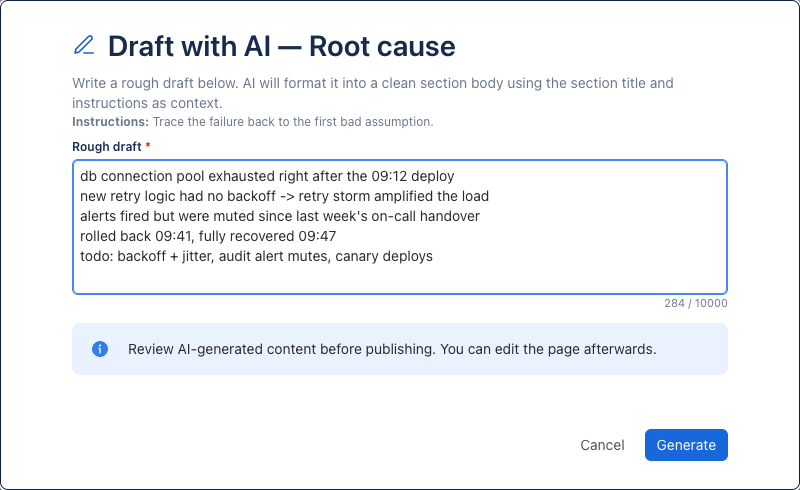
    Every section you hold carries a Draft with AI button next to Submit for Review. Click it and hand over rough notes — bullet points, a timeline, half-sentences are all fine. The AI formats them into a clean section body, using the section's title and instructions as context, so the draft lands on target.

    Section card with the Draft with AI button next to Submit for ReviewDraft with AI dialog with rough incident notes typed into the Rough draft field
  7. 07

    Preview first; Append or Replace when it reads right

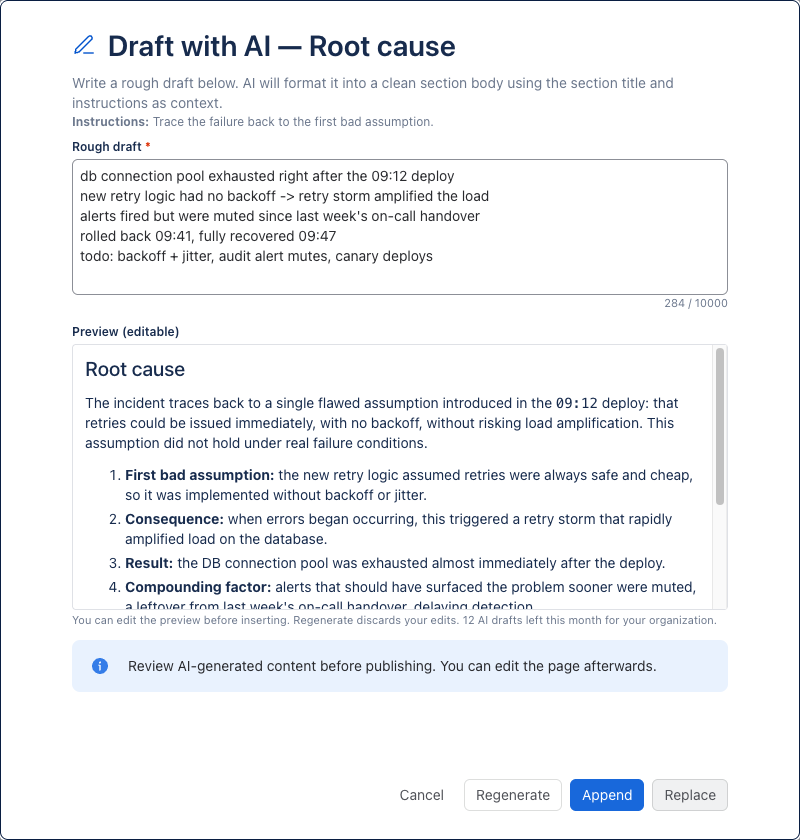
    Generate returns a structured draft in an editable preview — nothing touches the page yet. Edit it in place, or Regenerate for a fresh take (that discards your edits). When it reads right, Append inserts it under the section heading and Replace swaps the section body. Review AI-generated content before publishing — afterwards the page stays editable, like any Confluence content.

    Draft with AI dialog showing a generated draft in an editable preview above Append and Replace buttons
  8. 08

    AI Digest reads the whole board for you

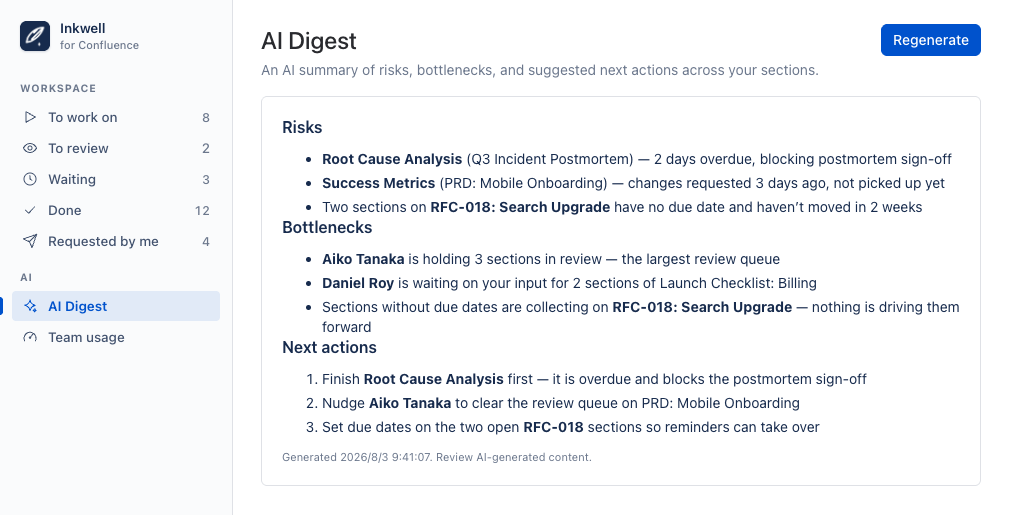
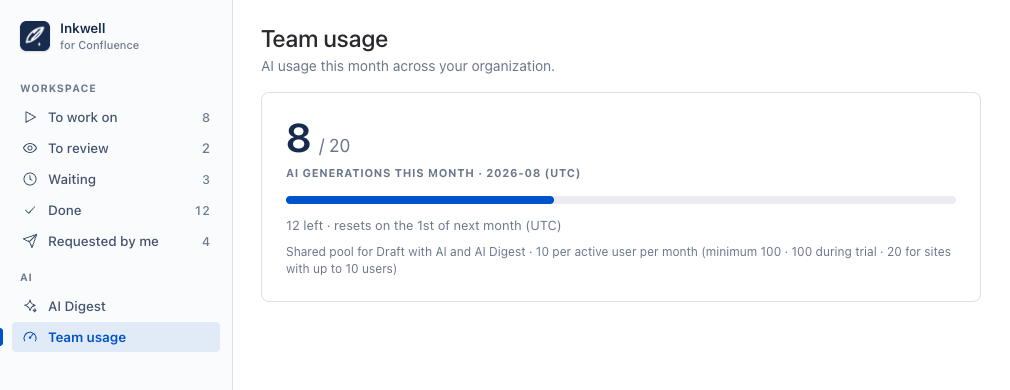
    In the dashboard's AI group, AI Digest condenses everything in flight into risks, bottlenecks, and next actions — naming the sections and people involved — with Regenerate for when the picture changes. Team usage, beside it, shows the shared monthly pool that drafts and digests draw from, how much is left, and when it resets: visible to the whole team, so there are no surprises.

    AI Digest view listing risks, bottlenecks and next actions across sectionsTeam usage view with the monthly AI generation count, progress bar and reset date

Settings reference

What each choice on a section does.

Assignee & reviewer
The assignee writes; the optional reviewer approves — and must be a different person. No reviewer means submitting marks the section Approved immediately. The section's creator and the page owner can edit or delete it.
Due date
Optional. Drives the card's Due today / Overdue by Nd chips, the red state of the page-top bar, and reminders. Sections without a due date never remind anyone.
Reminders
Automatic page comments from the app that @mention whoever holds the section — the reviewer during review, otherwise the assignee. Overdue sections repeat roughly daily; a due-within-24-hours heads-up fires once per due date.
Statuses
Not Started → In Progress → In Review → Changes Requested → Approved. Status only changes through the buttons — Start Working, Submit for Review, Approve, Request Changes — so the board always reflects what actually happened.

Tips & best practices

01

Write instructions, not just titles

"Root Cause Analysis" tells a writer where to type; instructions tell them what good looks like. Two minutes spent on the instructions field saves a Changes Requested round-trip later.

02

Right-size the ceremony

Not every section needs a reviewer. Leave the reviewer empty on the routine ones and submitting marks them complete in one step — save the review loop for the sections where a second pair of eyes earns its keep.

03

Let due dates do the chasing

Set a due date on the sections that matter and stop chasing people by hand: the page-top bar turns red, cards show Overdue by Nd, and the app posts an @mention comment on the page — before the deadline, and daily after it.

FAQ

Where does our content live?
The section text itself lives where it always did — in the Confluence page body. Assign & Approve Sections stores only the tracking metadata (assignments, statuses, due dates) in Forge storage inside your own Atlassian tenant; nothing transits a MiddleCore server. The same goes for the AI features: Draft with AI and AI Digest run on Atlassian-hosted models (Forge LLMs), so prompts and drafts never leave Atlassian either — and admins can turn AI off for the site entirely.
How is it priced, and is there a trial?
Assign & Approve Sections is distributed through the Atlassian Marketplace, so billing, trials, and updates run through your existing Atlassian account. It's free for sites with up to 10 users, and every plan has the same features; current pricing is shown on the listing. AI generations (drafts and digests) draw from a shared monthly pool sized by your user count — the app shows the current numbers under Team usage.
Can an approved section be edited?
No — approval locks a section for everyone, including the page owner. That's deliberate: an approved section is a record that the content was accepted. If it genuinely needs to change, delete the section and create it again.
What happens if I remove the macro or delete the page?
Removing the macro keeps your section data and simply stops the board and its reminders; re-insert it and everything is back. Two copies of the macro on one page show the same list — a page has exactly one board. Deleting the page removes its tracking data.
Who can add, edit, or delete sections?
Anyone who can see the page can view the board; the controls follow the roles. The section's creator and the page owner can edit or delete it, the assignee starts and submits, and the reviewer approves or requests changes. Everyone else sees a read-only "Watching" state.

Questions before you install?

Ask the person who builds it. Replies are fast and specific.

contact@middle-core.com